Give each photo a place.
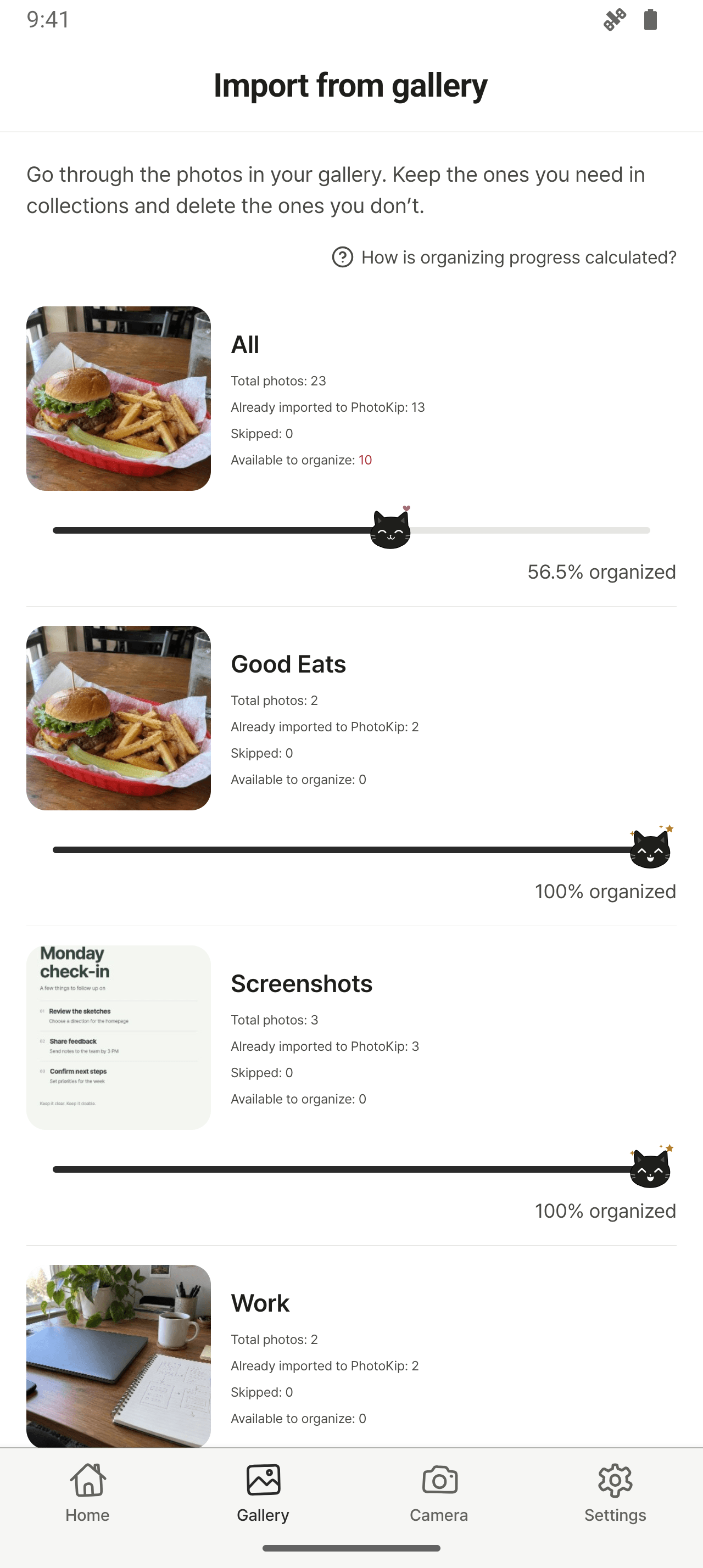
Review photos from your gallery, then tap a collection. Leave decisions for later in Inbox, skip a photo, or choose to delete its original.
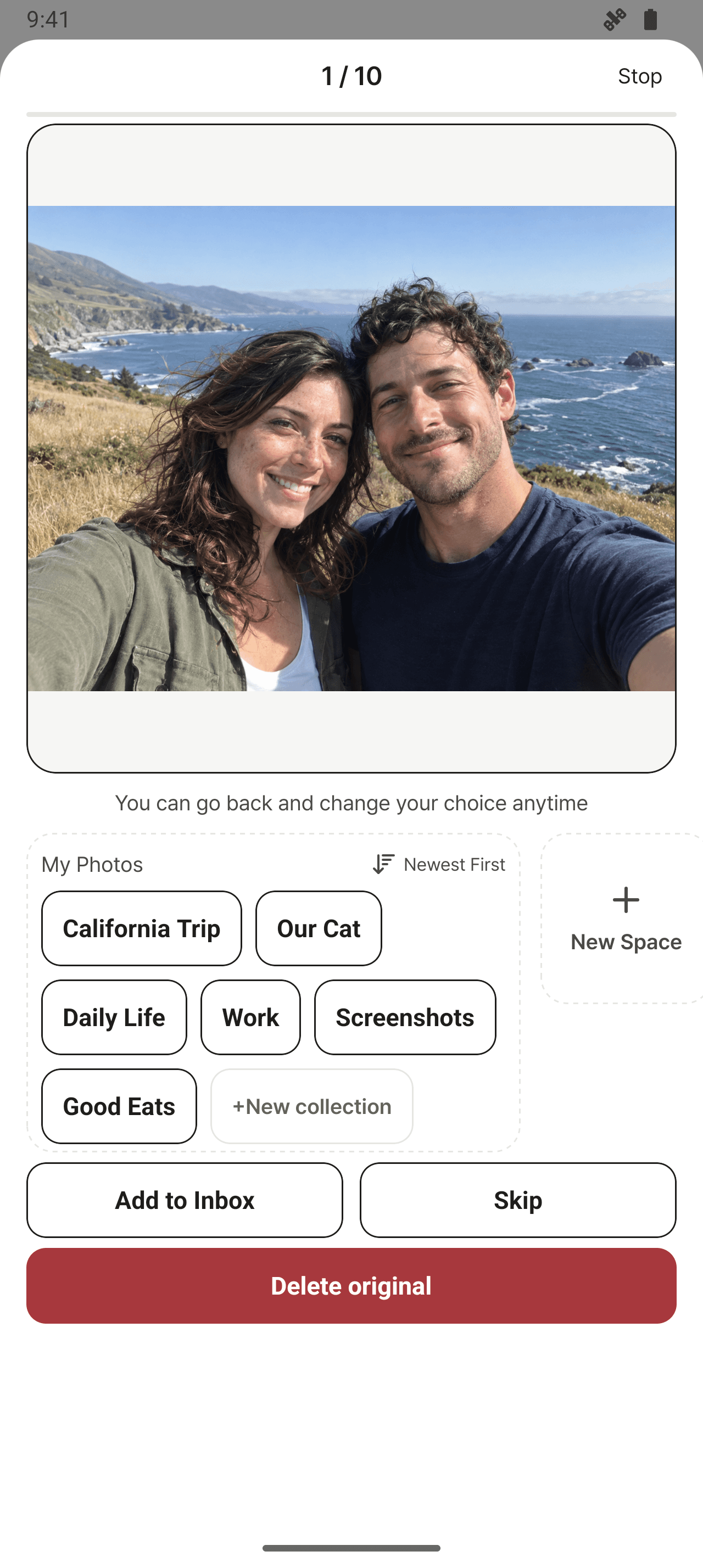


From everyday, travel and work photosto all those screenshots piling up.Gather the photos you need into collectionsand delete the ones you don’t.
Shall we sort together?
 Kippy, the cat with a knack for organizing photos


A little at a time
Review photos from your gallery, then tap a collection. Leave decisions for later in Inbox, skip a photo, or choose to delete its original.
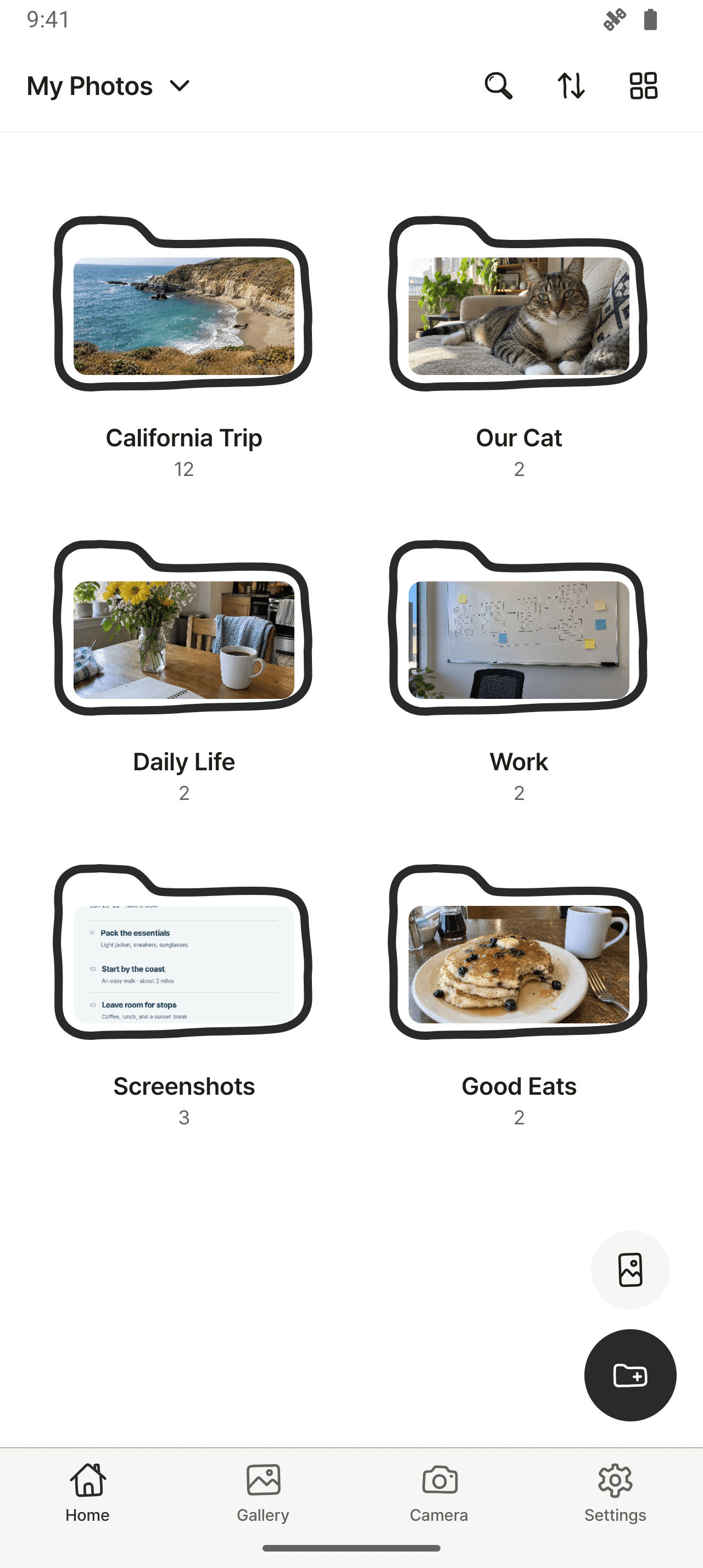
Group photos into collections and spaces. Add a note for context, then use search and filters to find what you need.
Find photos more easily and free up space on your phone
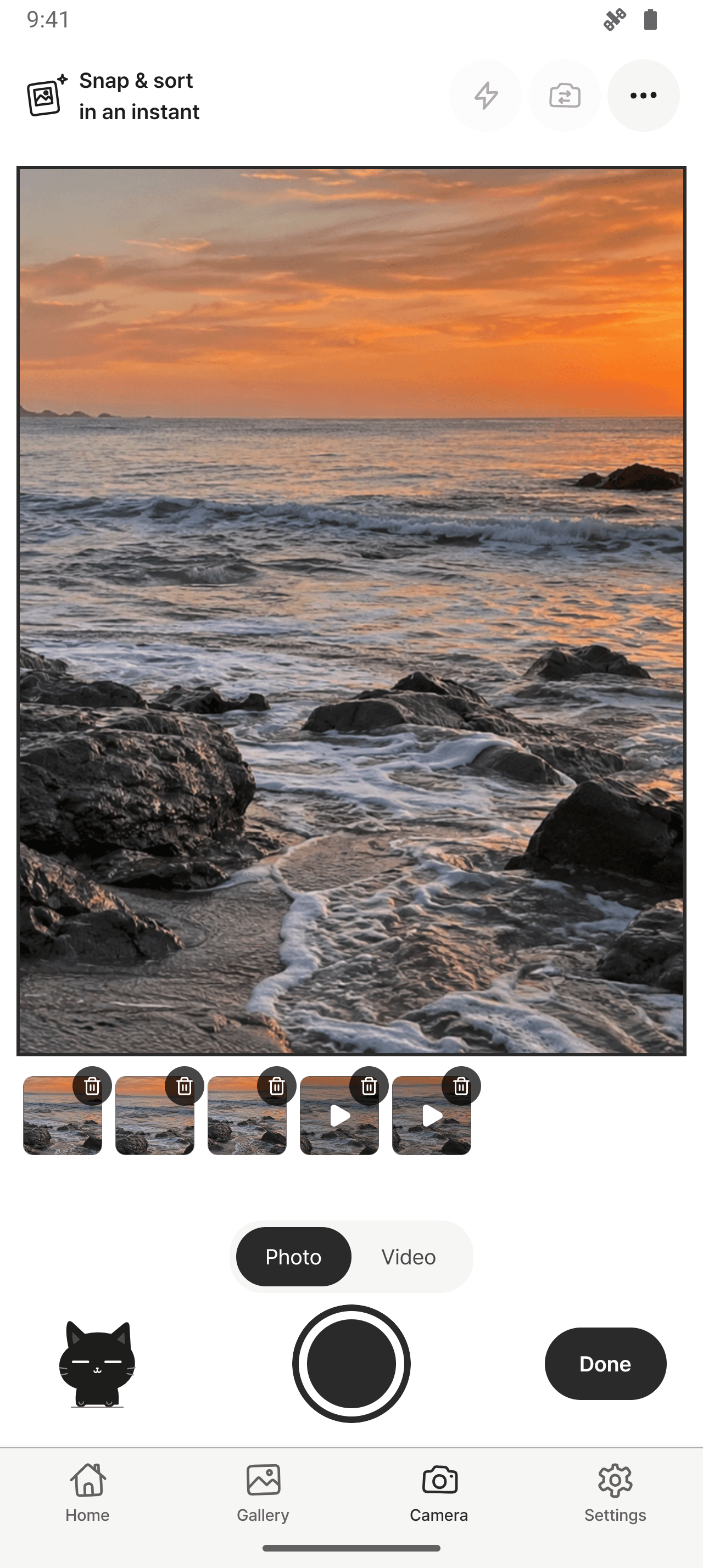
With the PhotoKip camera, you can organize photos as soon as you take them
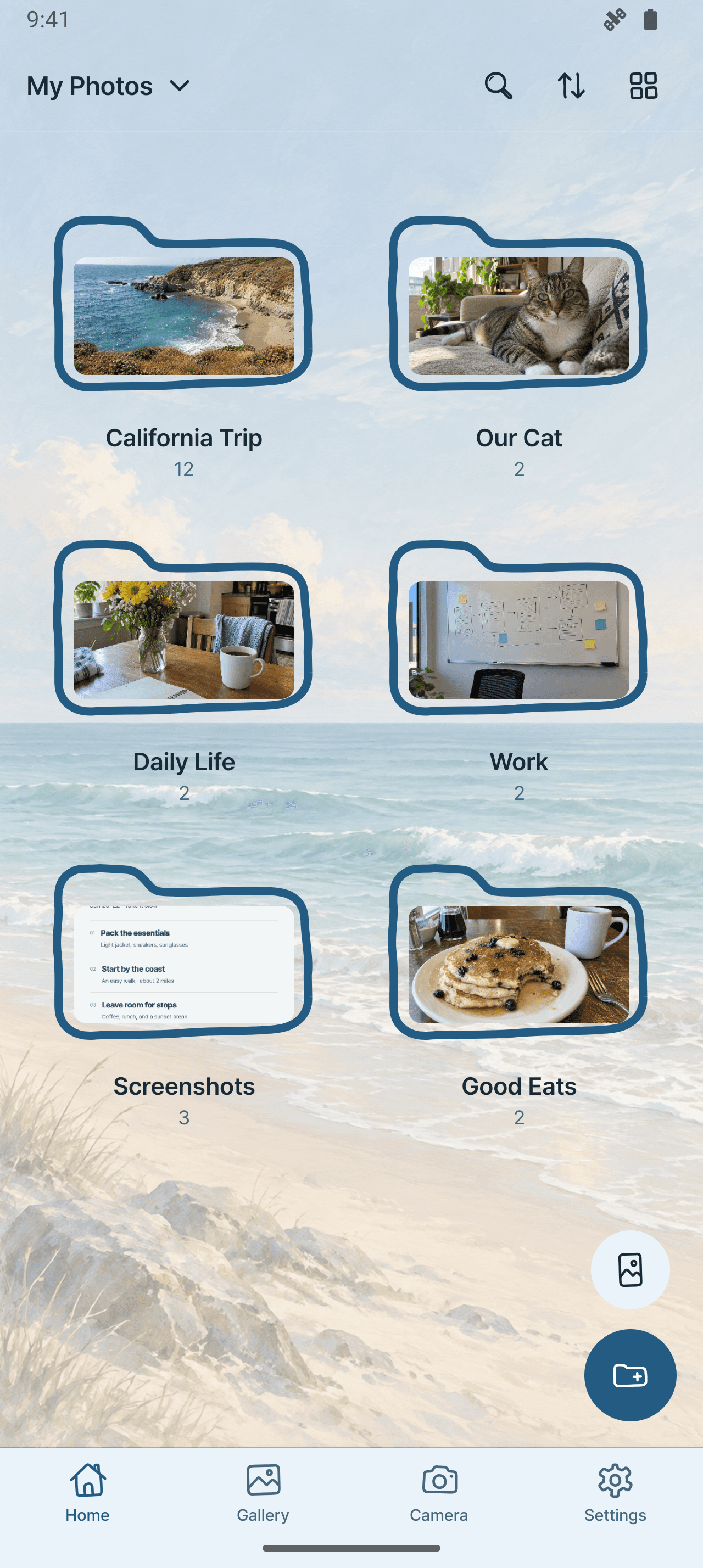

A space that feels like you
Choose your theme, background, font and app icon. Even organizing can feel a little more fun.

Yes. Free use allows a total of 50 photos and videos across regular collections, excluding Inbox. Complete an available rewarded-ad or Coupang-visit flow to lift this count limit for one hour. Items already saved are kept when the hour ends; the limit applies to actions that increase the total.
Premium is a one-time lifetime purchase: no in-app ads, no collection media-count limit, and access to Premium customization. Lifetime means for as long as the service is provided. Check the current price in the app. Restore purchases with the same app-store account; purchases may not transfer between iOS and Android.
You choose whether to keep or delete originals when importing, or choose original deletion during gallery review. Read the confirmation before deleting. Removing a copy in PhotoKip and deleting a gallery original are different actions. Available choices depend on your device, permissions and media format.
Supported behavior varies by OS and format. For example, HEIC may be converted to JPEG, and a Live Photo may be imported as a still image. Keep important originals separately and check imported files before deleting originals.
Photos and collection data are stored on your device. Uninstalling, resetting or losing the device can remove app data, and we cannot restore it. Before doing so, export important photos and videos to your device gallery and check the exported files. Export is not a full backup of notes, spaces, settings or the app’s organization.
No sign-up is required. Stored photos and collection content stay on your device, and core viewing and organizing work offline. Ads, purchases, purchase restoration, downloadable resources and other online services need a connection. The app uses analytics and other SDKs described in the Privacy Policy.